

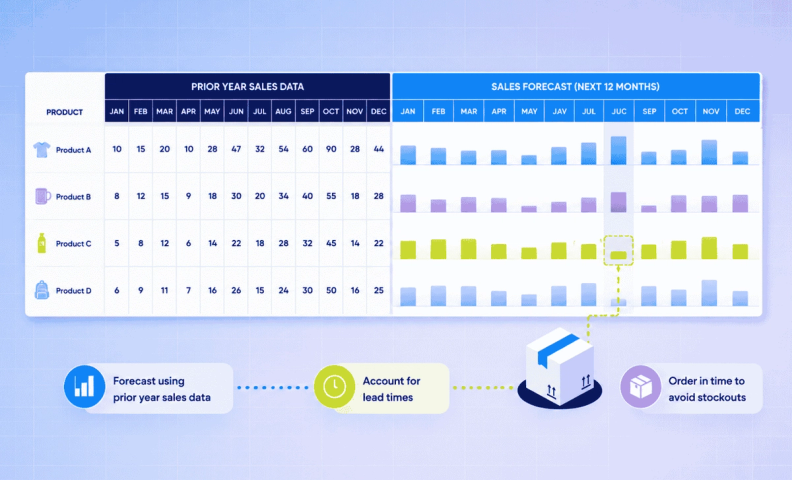
Let's talk inventory forecasting! It's one of those accounting topics that can seem a bit like guesswork, especially without an inventory management tool. It's not the easiest job, but it can be simpler than you’d expect.
In this post, we'll walk through inventory forecasting in Excel using our purpose-built template, so you can forecast your inventory planning and purchasing, even if you aren't ready to invest in an IMS tool. We can't promise you'll leave an expert, but you should feel much more confident about your next steps!
A quick note about our inventory forecasting excel template
This post links to our purpose-built inventory forecasting Excel template, essentially a 12-month sales forecasting Excel template we initially created for our own ecommerce brand.
It's important to mention that we don't manage a staggering number of SKUs. If you stock hundreds or thousands of different products, this template will make things difficult. That's simply too many products to handle in Excel.
Technically it's possible, but you'd be better served by using specialized inventory management software once you're operating with that much stock. You might like to check out any of the following options for this:
Further reading: Your Inventory Management Roadmap
A major piece of what we do here at LedgerGurus is to help clients find a inventory management tool that fit their business's needs. We’re familiar with several tools and can help you find the right one.
How much inventory should I have?
Inventory management matters. Overselling can be a real killer for ecommerce platforms. There are real benefits to selling on platforms like Shopify or Amazon, but the competition is intense. If you run out of stock, especially with a 4+ month lead time on a restock, your prospective customers will simply look elsewhere.
We recommend inventory management software (IMS) once companies are ready for it, but managing inventory in Excel is a very viable method until then.
When asking yourself “How much inventory should I order?”, you need the information on hand to answer it. Otherwise, you're just guessing, and that’s a hard way to maintain your edge online.
The forecasting template we discuss in this post makes forecasting inventory simpler and helps you predict what your orders will cost and when to place them so they arrive in time. The template is built for small to medium inventories. Used correctly, it can:
- Give you clearer predictions about order costs
- Provide a quick overview of your available and forecasted stock
- Help you avoid running out of stock
Further reading: Causes of Stock Discrepancies: Why Your Inventory Count is Off
How to use our inventory forecasting Excel template
Here's the link to the free template:
Now, let's walk through the components of the forecasting sheet. Prefer video? Check out our video walkthrough.
Step 1: Prior year sales data
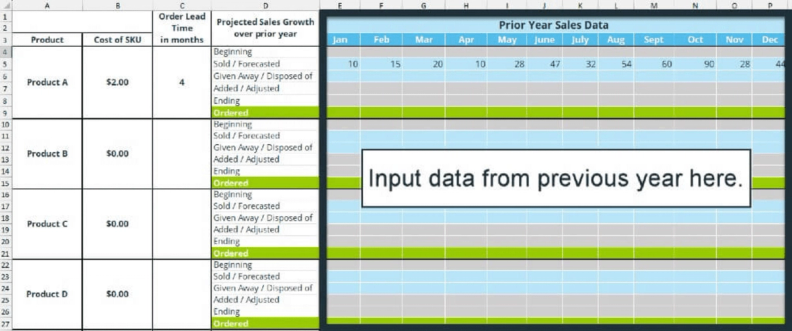
Before getting into the template itself, one thing matters most: prior year sales data. This is what you'll use to build your own sales projection. Historical data is critical. Without it, this template is just a shot in the dark rather than something you can rely on. You'll input last year’s sales for a given product and use that data to predict the year ahead. Have this information ready before continuing.
Note: for the most accurate results, fill out this spreadsheet right after a full inventory check. If you run a full inventory in January, February is a good time to get everything entered.
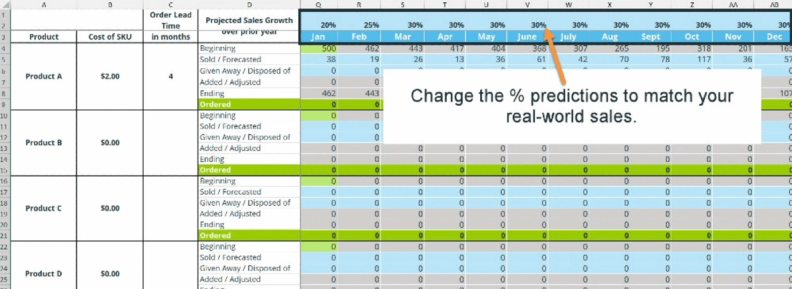
The columns to the right of “prior year sales data” use that data to predict next year's sales. You'll need to tweak the percentage predictions to better match your real-world sales.
Step 2: The year ahead
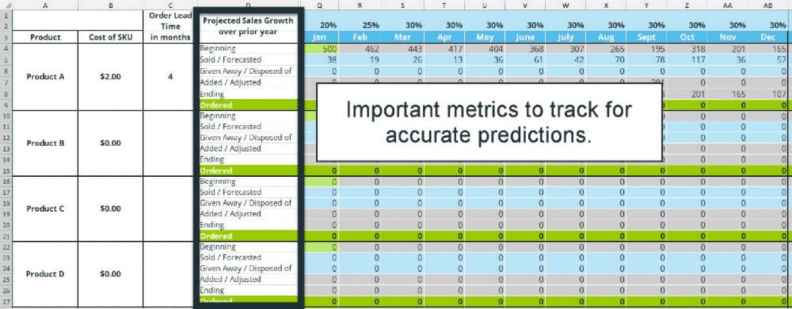
The "projected sales growth over prior year" section helps you predict how your inventory levels will change month over month. Here's what each row contains:
- Beginning: How many units of that SKU you have (or had, for the prior year) at the start of the month.
- Sold/forecasted: How many units you sold, or expect to sell. Use prior year data to predict this, then replace the forecast with actuals once the month ends.
- Given away/disposed of: Inventory that leaves your warehouse without being sold, through marketing, gifts, or damage. Log it here.
- Ending: How many units are left at the end of the month.
- Ordered: Any orders you've placed, which updates your inventory overview using your lead time column.
Further reading: How to Calculate & Optimize Inventory Turnover for Ecommerce Sellers
Step 3: Product rows
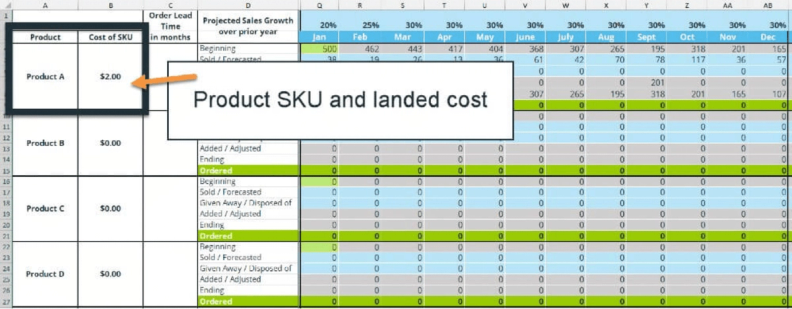
The product rows are where you input a given SKU's name and cost, pulled from what you paid vendors for that product last year. Add this data if you have it, the spreadsheet uses it to calculate your order costs. If you're unsure how to calculate your costs accurately, read Understanding Landed Cost: What It Is and How to Calculate It. This gives you a quick overview of what each product costs you per unit.
Note: Want more rows? Select the bottom row, right-click and copy, right-click the cell directly below it, then click "paste copied cells."
Step 4: Lead time column
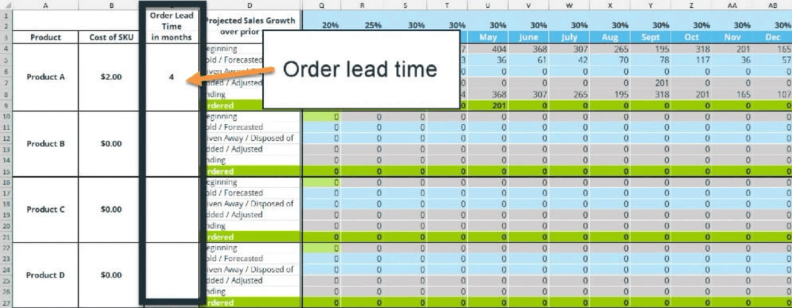
The lead time column is where you input how many months it typically takes for orders to arrive, which helps you avoid unnecessary delays. For example, if an SKU has a 4-month lead time and you'll need fresh stock by June, place your order around February.
Step 5: Calculating order costs
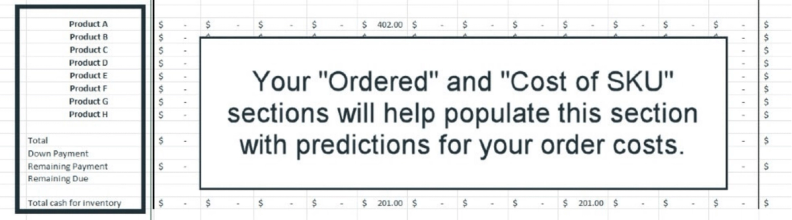
The bottom section gives you a quick overview of how much your orders will likely cost in a given month, using your "cost of SKU" and "ordered" sections. (Order cost isn't the same thing as COGS, so if you're unclear on the difference, that's worth a quick read before you rely on this section.) Down payments are often a necessary part of ordering, so we've included space for that here too.
We've also built this spreadsheet assuming each SKU comes from a single vendor. If that's not your situation, this section will function more as an approximation than a precise figure.
Frequently asked questions
Can I really forecast inventory in Excel instead of using inventory management software?
Yes, if you're managing a small to medium number of SKUs. A well-built Excel template can handle forecasting just fine; it's once you're managing hundreds or thousands of SKUs that spreadsheets become unmanageable and a dedicated IMS makes more sense.
What information do I need before using an inventory forecasting template?
Prior year sales data for each product is essential, it's the foundation the entire forecast is built on. Without it, you're just guessing rather than forecasting.
When is the best time to fill out an inventory forecasting spreadsheet?
Right after a full inventory check, so your beginning numbers are accurate. If you do a full count in January, February is a good time to get everything entered.
Does the template work if I order from multiple vendors for the same SKU?
It's built assuming each SKU comes from a single vendor, so if that's not your situation, the order cost section will function more as an approximation than a precise figure.
What if I have too many SKUs for a spreadsheet to handle?
That's the signal it's time to move to dedicated inventory management software tools like Finale Inventory, Cin7, or Katana are built to handle that complexity in a way Excel isn't.
Ready for more than a spreadsheet?
Most accounting topics seem overwhelming at first glance, and with the right support, this stuff is doable. But, if you'd rather stop managing your inventory in Excel, and have a real inventory management tool set up for you, we can help.
We have a team of dedicated ecommerce inventory experts that have worked with many leading brands to manage their inventory more effectively and efficiently.
