
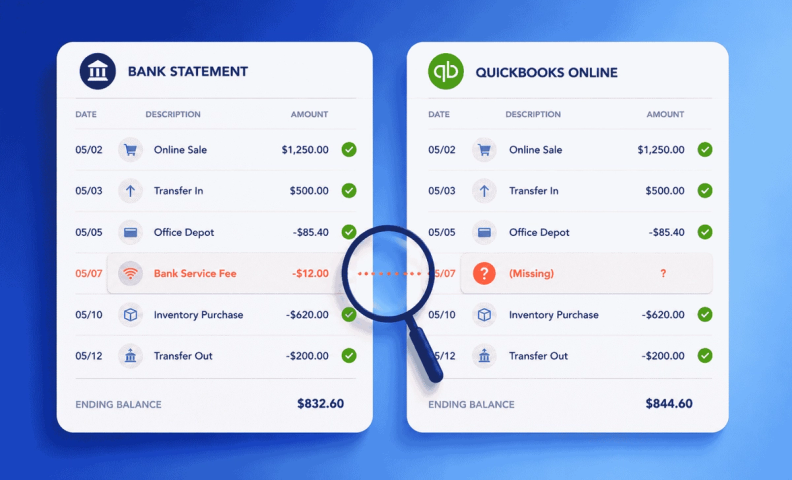
Reconciling bank accounts in QuickBooks Online is a crucial part of maintaining accurate financial records for your business.
Gone to reconcile your accounts and found the numbers just don't add up? It's frustrating, and it can eat up real time while you figure out what's wrong. With a bit of patience and attention to detail, though, you can troubleshoot it and get your accounts back on track.
Why reconciling monthly matters
The main reason to reconcile is simple: make sure what your books say and what your bank says actually match.
The goal is to look for discrepancies between your bank statement and what's recorded in QuickBooks Online. Get that to line up, and you have an accurate picture of your cash flow, can spot irregularities early, and can catch theft if it's happening.
A few common reasons things don't match:
- Transactions recorded in QuickBooks but not on your bank statement, or vice versa.
- Errors in what's recorded in QuickBooks Online, wrong dates, amounts, or descriptions.
If you've been incorrectly charged, dispute it promptly so your account balances stay accurate. If your reconciliation issues turn out to be less about a specific transaction and more about deposits not matching what you expected from your sales channels, our guide to reconciling payment processor deposits covers that side of things.
Step 1: Check your beginning and ending balances
Start here before anything else. If an old transaction gets edited after a prior reconciliation, your beginning balance can quietly shift. QuickBooks will flag this for you. If you see a "this account isn't ready to reconcile" warning, click through it to see exactly which transactions changed since your last reconciliation, along with a full audit history of who changed them and when. Fix any that were accidentally unreconciled, or wrongly marked as reconciled, directly from that list, no need to dig through the register by hand to find them.
While you're there, confirm your ending balance and ending date actually match your bank statement. A wrong closing date is an easy typo to miss (2026 instead of 2025, for instance), and it causes QBO to include or exclude transactions from the wrong time frame entirely. Correct it, and your cleared transactions realign automatically.
Step 2: Review individual transactions
If your balances check out and you're still off, it's usually a missing or mis—recorded transaction. It’s most often an uncaptured debit or a service fee that never made it into QBO.
This used to mean manually scanning your bank statement line by line. QuickBooks Online now surfaces AI-suggested matches automatically and flags them with a color-coded confidence signal, so you can focus your attention on the transactions it's genuinely unsure about rather than reviewing everything with equal scrutiny. You can also edit a transaction inline now, right from the reconciliation screen, instead of opening it separately.
If something still doesn't turn up, search your bank statement for the exact amount of the difference to confirm whether it's missing from QuickBooks entirely, then enter it. It's still a good habit to periodically check that checks paid out and service fees are actually recorded. AI-matching is much better than it was, but it isn't infallible, especially with newer or less common vendors.
Step 3: Call in QuickBooks Support
If you can't resolve it on your own, don't hesitate to reach out to QuickBooks Support for help. They can walk through the troubleshooting with you and get your accounts back on track.
Frequently asked questions
Why won't my QuickBooks Online reconciliation balance?
Usually one of a few things: a wrong beginning or ending balance, a transaction that's missing from QuickBooks or your bank statement, or an error in a recorded transaction's date, amount, or description.
What's the most common cause of a reconciliation mismatch?
A wrong beginning or ending balance. Check those first before reviewing individual transactions, it's the fastest way to rule out the most common culprit.
Does QuickBooks Online's AI matching mean I don't need to check reconciliations manually anymore?
Not entirely. AI-powered matching handles a lot of the routine work now and flags its confidence level on each suggestion, but it isn't perfect, especially with new or unusual vendors. Spot-checking, and reviewing anything flagged as lower-confidence, is still worth doing.
Do I have to review every single transaction to fix a reconciliation error?
Not usually, and less than ever now. Start with beginning and ending balances, then let QBO's AI-suggested matches guide you to the transactions that actually need attention instead of reviewing everything with equal scrutiny.
What should I do if I can't find the discrepancy myself?
Reach out to QuickBooks Support. There's no reason to keep burning hours guessing once you've worked through the standard troubleshooting steps and the issue still isn't clear.
Let us take reconciliation off your plate
By following these steps, you can troubleshoot most bank reconciliation issues in QuickBooks Online and get your accounts back on track. It just takes patience and attention to detail. If you'd rather not spend that time yourself every month, that's exactly what we handle for ecommerce sellers.
