

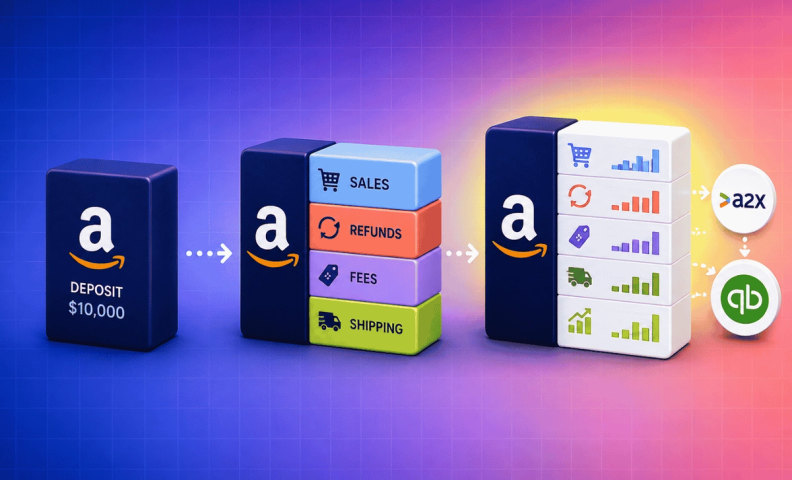
Whether you're a newbie or a seasoned Amazon seller, understanding how to bring the sales data from your Amazon business account into your QuickBooks account is crucial. But first you need to understand WHY it is so important, why deposits are not the same as net income, and how it impacts your profitability and visibility into your business.
Here's what that looks like in practice. Say a two-week settlement includes $12,000 in sales, minus $1,500 in Amazon fees, minus $500 in refunds. The deposit that actually hits your bank account is $10,000. If you just record "$10,000 in sales income," your books show $2,000 less revenue than you actually earned and hide $1,500 in fees and $500 in refunds you'd otherwise want visibility into.
For those who prefer a visual guide, check out our YouTube video.
Why Amazon accounting is different
The challenge with ecommerce accounting is that it is fundamentally different from any other type of accounting. Unlike traditional businesses where financial activity is primarily routed through bank accounts, in ecommerce, financial activity flows through your sales channels, not your bank accounts.
As your business grows, your accounting needs to evolve. The method suitable for a startup might not be right for a business with millions in annual revenue, so it's worth assessing where you stand before choosing.
How to get Amazon sales data into QuickBooks Online
Amazon's Fulfillment by Amazon (FBA) service simplifies selling, but it also creates some unique accounting challenges. Managing logistics gets easier, but keeping a clear record of your financial transactions doesn't happen automatically and neglecting it can cause long-term issues.
Before we go further: syncing your Amazon Seller Central account directly with QuickBooks Online is a bad idea. For why, read Should You Sync Shopify with QuickBooks Online? Here's Why Not (it references Shopify, but the concept is identical). Skip the direct sync. We'll show you three methods that work better with a lot less hassle.
First, some context: Amazon deposits sales proceeds into your bank account every two weeks. That deposit is a consolidated summary of all activity, orders, refunds, shipping services, selling fees, and more, over the past two weeks, lumped into one number. The method you choose determines how you record what's behind that number.
What works well at one stage of your business won't necessarily work at the next. So, ask yourself three questions to narrow down the right method for you right now:
- How big is your business right now?
- Where does getting financial data fall on your list of priorities?
- What kind of decisions are you trying to make with this data?
Here's how the three methods stack up:
| Method 1: Simplified | Method 2: Detailed | Method 3: Automated | |
|---|---|---|---|
| Best for | Under $100K/year | $100K–$500K/year | $500K+/year |
| Effort required | Minimal | Moderate (manual journal entry) | Low (after setup) |
| Detail you get | Net deposit only | Categorized income/expenses | Full settlement breakdown |
| Handles month-end timing | No | No | Yes, automatically |
Method 1: Simplified recording for startups
Record Amazon cash deposits as "sales income" in QuickBooks Online. Best for Amazon sellers just getting started or making less than $100K per year.
If that's you, you're deep in building the business: driving revenue, learning to market, designing and sourcing product, working with vendors. That list is more important right now than digging into the details of your ecommerce accounting. You just need to know if you're making or losing money and have something to hand your accountant at year-end.
The Method
Assuming you're using QuickBooks Online (QBO) with your bank and credit cards synced:
- Find your "Amazon Settlements" deposit.
- QBO will likely default to Sales of Product Income, which is fine, or change it to Amazon Sales or whatever makes sense.
- Click Add. It hits your financials and you're done.
Pros and cons of method 1
This is the simplest, least time-consuming option, and your net income is correct. The cons: not much detail, some timing issues, and it skews your margins at the gross profit level. There's information you're not seeing that matters for decisions, but you may not need it right this minute.
If you're making over $100K a year, scaling, and trying to use your financials to make real decisions, look at Method 2.
Method 2: Recording Amazon activity in detail for growing businesses
For sellers making $100K–$500K a year, this method balances simplicity and detail. You're getting the hang of things but don't have hours to spend in a spreadsheet. (This may also be a good time to consider outsourcing your accounting.)
This method means categorizing Amazon sales data in QBO instead of lumping it all into one line, giving you insight into income and expense categories without a huge lift.
| Line Item | Amount |
|---|---|
| Amazon sales | $150,000 |
| Shipping income | $1,000 |
| Sales tax collected | $3,000 |
| FBA inventory reimbursement | $6,000 |
| Amazon FBA fees | - $36,000 |
| Chargebacks / refunds | - $20,000 |
| Shipping fees | - $3,000 |
| Promo rebates | - $1,000 |
| Net deposit in bank account | $100,000 |
Heads up, this method requires a journal entry in QBO. Don't let that scare you off. We'll walk you through it simply enough that you'll be making journal entries like a pro.
The method
Step 1. Download your settlement report from Amazon:
Sign into Seller Central. Click Reports, then Payments. The Statement View tab shows your current open settlement; the All Statements tab lets you view or download past reports.
You'll see all order activity, refunds, shipping, selling fees, and other transactions from the past two weeks. The number at the bottom is what was deposited into your bank account. That's what goes into your journal entry.
Step 2. Create a journal entry in QuickBooks Online
- Click + New, then under "Other," select Journal Entry. You'll see Accounts, Debits, and Credits.
- Date: enter the journal entry date.
- Journal Number: QBO assigns one automatically; keep it or change it.
- Accounts: select the accounts affected. You can lump Orders together, Refunds together, etc., or itemize. What level of detail do you need?
- Amounts: enter debits and credits. Map line items however makes sense. Rule of thumb: black = credits (money in), red = debits (money out).
- Description: add detail about the transaction.
- Name: optionally tie it to a customer, vendor, or employee.
If your debits and credits are right, the total should default to the amount deposited.
Note: You can also generate and download custom reports from the Date Range Reports tab.
Pros and cons of method 2
You get more detailed insight, better categorization, and a clearer financial picture. The biggest problem is timing: Amazon deposits every two weeks, which won't always align with month-end. A deposit on the 5th is mostly revenue from the prior month, and if you're tracking trends or matching income to cost of goods sold, that period-ending mismatch matters.
This method also doesn't show you everything happening behind the scenes. Amazon has over 400 different line item types for money moving in and out and untangling those by hand means a deep dive into back-end reports, sorted by date, then by activity, then... Method 3 gets this under control.
Method 3: Leveraging technology for established sellers
For sellers doing $500K+ in annual sales, though there's nothing wrong with adopting this sooner. At this stage, you need your accounting to be a source of truth. Common complaints we hear before people start working with us:
- My accounting isn't a source of truth for me.
- None of this looks right.
- My accounting doesn't match the reports coming off my channels.
- I have no idea what's really happening.
This is where you do a deep dive into Amazon activity (and every other channel you sell on) so your accounting becomes reliable now and stays useful as a reference later. Good data makes good decisions possible.
Apps to record Amazon sales data in QuickBooks Online
Doing this manually requires deep knowledge of both Amazon and your accounting tools. A better option: a tool that syncs the two systems for you.
- Go to Apps in QuickBooks Online.
- Search Amazon to see integrations available.
- Our favorite is A2X (view our A2X video here). For a full breakdown of A2X against the alternatives, see Best Amazon QuickBooks Integrations in 2026.
- Clicking an app shows an overview, usually with a quick video and pricing.
How to make ecommerce accounting work for you
That was a lot, but if you've made it this far, you're well on your way to mastering Amazon sales recording in QuickBooks Online. Quick recap:
- Start Simple: New sellers should record Amazon cash deposits straight into QuickBooks as "sales income." Straightforward, and it doesn't pull focus from growing the business.
- Detail matters: Once you hit $100K, break Amazon transactions into detailed categories. A few more clicks and a journal entry or two, think of it as fine-tuning your financial engine.
- Tech to the rescue: Past $500K (or earlier, if you want it sooner), a tool like A2X streamlines the chaos and makes your accounting a reliable compass for decisions.
Each stage of your business may call for a different approach. What works at one stage can be a hindrance at another.
Frequently asked questions
How do I do a QuickBooks integration with my Amazon account using A2X?
Follow our Amazon-to-A2X setup tutorial and our A2X-to-QuickBooks setup tutorial, or let us set it up for you.
How do I know if my Amazon books are actually accurate right now?
If your books don't match the reports coming off your sales channels, or you can't tell what's really happening in your business from your financials, that's a sign your current method has outgrown you, not the other way around.
When is it time to hire an ecommerce accountant instead of doing this myself?
When you need more detail and insight than your current method gives you, that's the point to consider outsourcing your accounting to an ecommerce-specialized accountant.
What should I look for in an Amazon accounting partner?
Not all accountants and bookkeepers are equal here. As your business grows, look for one who knows ecommerce accounting inside and out, not someone learning Amazon's quirks on your books.
What else should I be tracking beyond just recording the settlement deposit?
Use our ecommerce bookkeeping checklist to see everything you should be doing weekly, monthly, quarterly, and annually, and to double-check that whoever's doing it for you is covering all the bases.
Ready to get your Amazon accounting right?
Whether you're still recording simple deposits or ready for full app-based automation, LedgerGurus specializes in A2X and QuickBooks Online integration for Amazon sellers. We'll set it up so your books actually reflect what's happening in your business, not just what hit your bank account.
